Google Business Profile is a free tool from Google that allows business owners to control how their business appears on Google Search and Google Maps. Here’s how to register your business on Google.
What Is Google Business Profile?
Google Business Profile is a free tool from Google that allows business owners to control how their business appears on Google Search and Google Maps. Formerly known as Google My Business, it was launched in June 2014 and has since become one of the most powerful free marketing tools available to small and medium businesses worldwide.
When someone in your city searches for a product or service you offer, Google My Business is what determines whether your business shows up in those results. It’s essentially you business’s free storefront on Google. Your Business Profile appears in Google Maps and in the local results of Google Search. This gives you visibility exactly where potential customers are already looking.
To give a practical example: if someone in Port Harcourt searches “barbing salon near me” or “best cake shop in Enugu,” businesses that have a properly set up Google Business Profile are the ones that appear at the top. They will be offered to the searcher before websites, before social media pages and will be displayed right there on the search results page.
Why Does Your Nigerian Business Need It?
Many Nigerian business owners rely heavily on word of mouth, Instagram, and WhatsApp to get customers. These are great, but they have limits. Your Google Business profile extends your reach to people who don’t already know you to people who are actively searching for what you sell.
Here’s what a well-optimized Google Business Profile does for you:
It makes you discoverable. Maintaining a Business Profile can increase your visibility on Google, enhance your credibility through reviews, and let you control your business information.
It builds trust. When a potential customer searches for your business and finds a complete Google profile, with your address, phone number, photos, and reviews. They are far more likely to trust and contact you than if they find nothing at all.
It’s completely free. Unlike paid advertising, you don’t need a budget. Google Business Profile is a free tool that lets you manage how your business appears in Google Search and Google Maps to reach new customers.
It drives real results. Research has shown that businesses with over 100 photos on their Google Business Profile are likely to receive over 300 website visits, while businesses with fewer than 20 photos typically get around 30. Photos signal activity and professionalism.
It helps with local SEO. SEO is important for any business, but particularly for small businesses that can use local targeting to compete against large competitors. It is how you achieve what is called Local Search Engine Optimization, that is, getting found by people in your area.
Your GMB profile includes your business name, a description of your services, business hours, photos, customer reviews, posts, products, services, and analytics to track how people are finding you.
Step 1: Search, Claim or Create Your Business
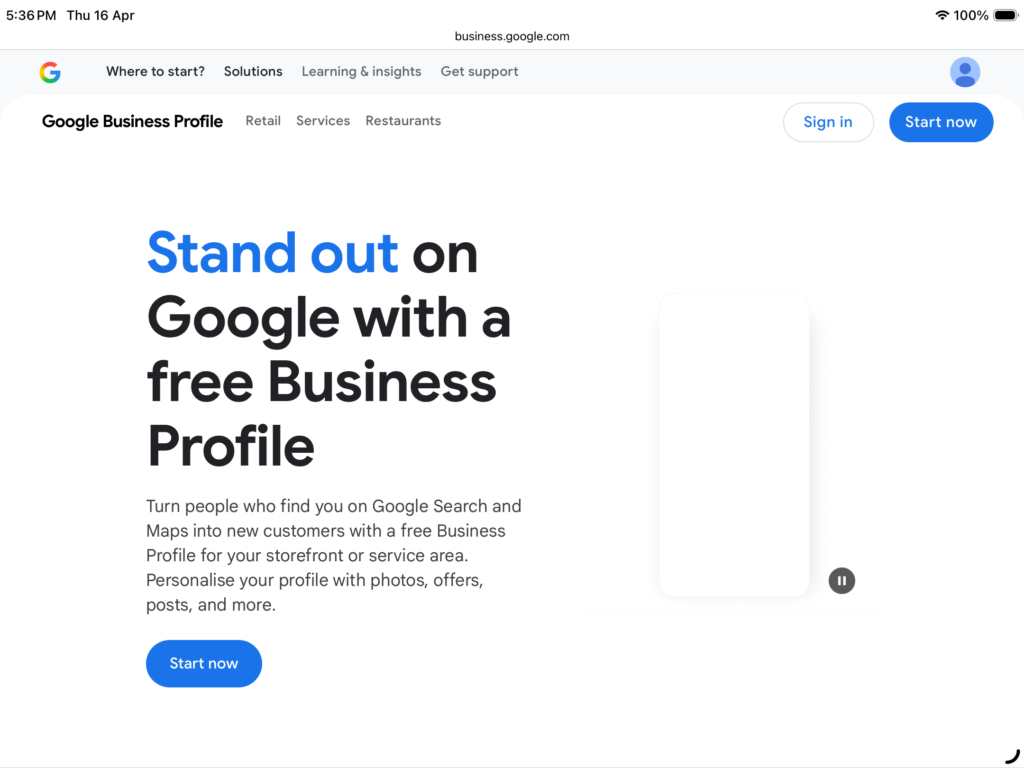
Go to www.google.com/business and click “Manage Now.” You’ll need a Gmail account, so create one if you don’t already have one.
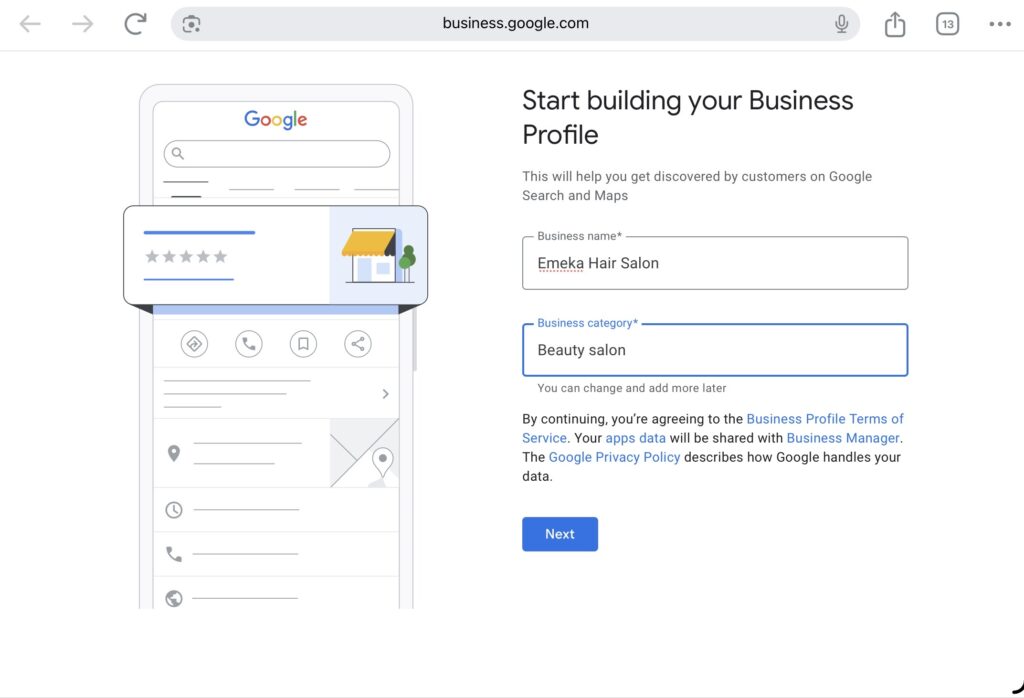
Type in your business name. If your business name appears in the suggestions, you can go ahead and claim it. If not, select “Add your business to Google” or “Create a business with this name.”
Be strategic with the name you enter. Use a name that clearly reflects what you do. For example, instead of just writing “Emeka Ventures,” write “Emeka Printing & Branding Services.” Your name should tell Google (and customers) exactly what your business offers. You can even include your general area in the name for added local relevance.
It is also possible that your business already exists in Google Maps. It is possible that Google pulled your details from another directory, or a customer added it. Unclaimed listings appear either because Google automatically sourced your business details from other websites, or because another person created a profile. In that case, you simply need to claim it by clicking “Own this business?” on the listing.
Step 2: Choose the Right Business Category
This step is more important than most people realise. Examples include “Restaurant,” “Plumbing service,” “Retail store”. Your business category tells Google what kind of searches to show your business for. Choose the wrong category and you will miss out on the right customers entirely.
A smart approach is to search for your competitors on Google first. For example, if you run a catering business in Lagos, search “catering services in Lagos” and see what category the top results are listed under. Match yours to theirs.
Enter your business category and click “Next.” You can also add additional related categories to broaden your visibility. You can return to this and add secondary categories later.
Step 3: Add Your Location and Service Areas
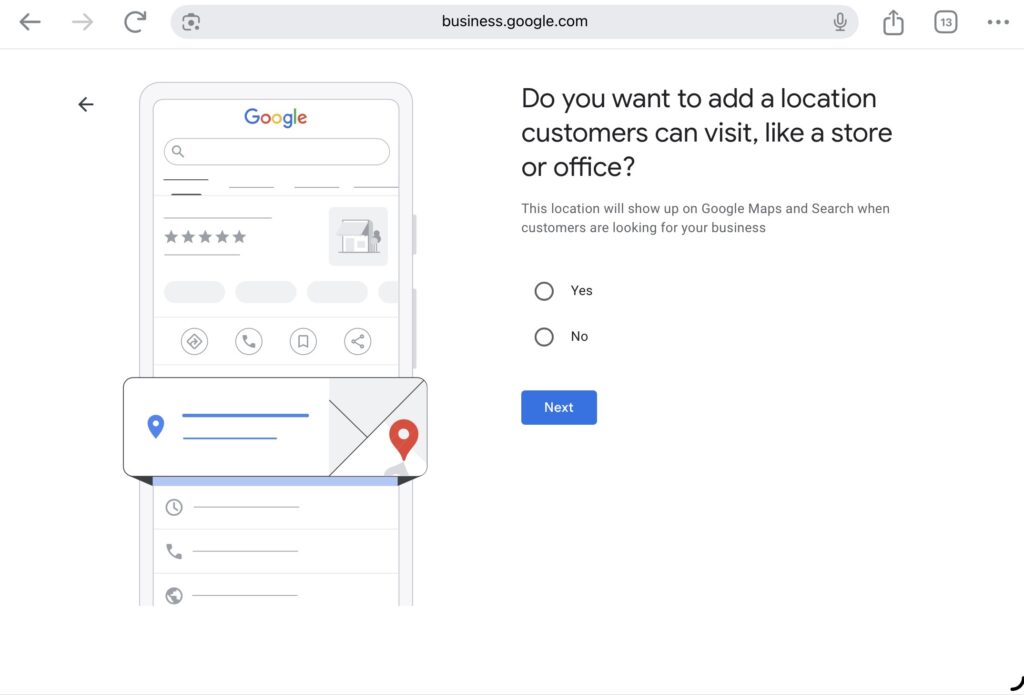
If your business has a physical location that customers visit, that is, if a shop, an office, a salon, a school, then select “Yes” and enter your address accurately. This is important because Google uses this address for verification.
If you offer deliveries or on-site services, you can also indicate the areas you serve. For example, if you’re a plumber in Ikeja but you serve all of Lagos State, you can list those service areas. For service-area businesses (e.g., delivery, home services, or mobile businesses): You can hide your address and instead define a service area (cities or regions you cover). Google will show your business on Maps accordingly.
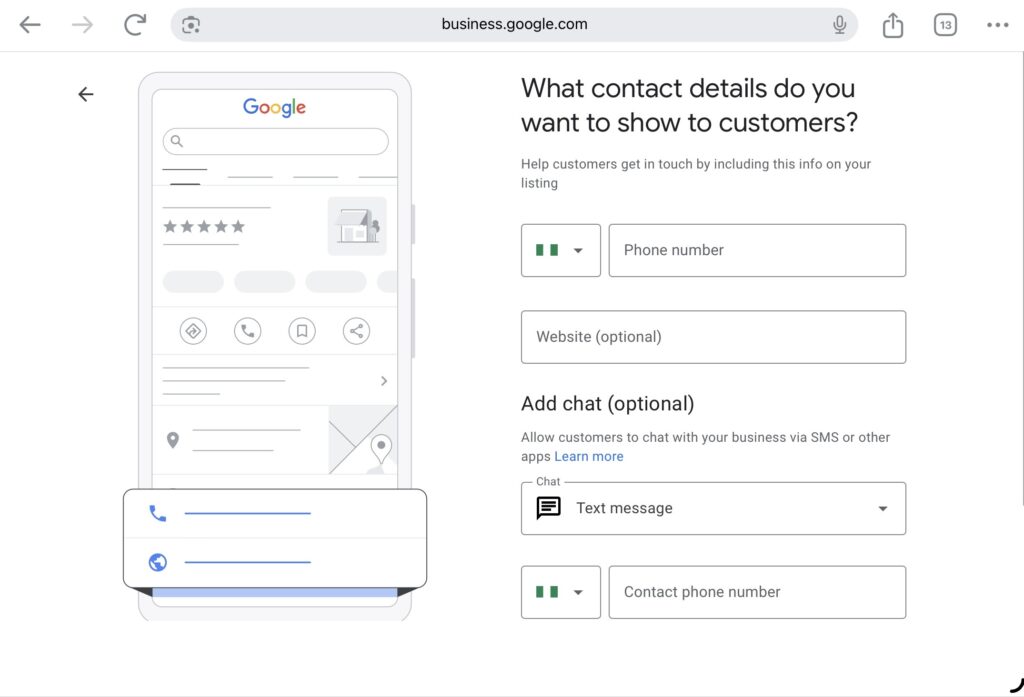
Step 4: Provide Your Contact Information
Add your phone number and the URL of your website if you have one. Also add your and business hours. Also include opening/closing times, and mark if it’s open 24/7 or has special hours.
Step 5: Verify Your Business
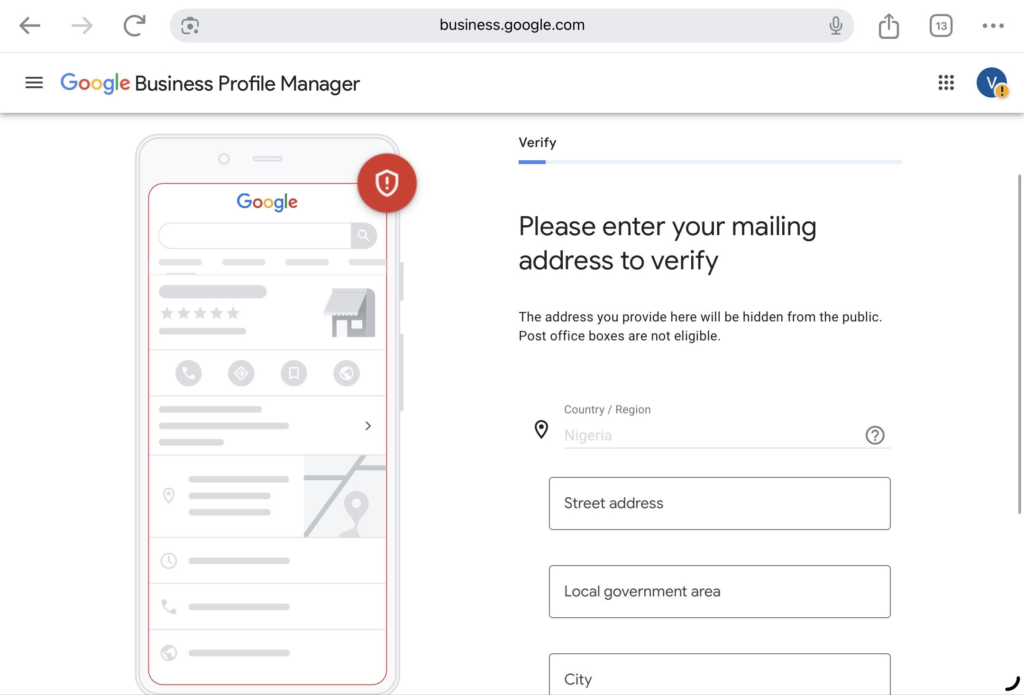
Your profile won’t fully appear or be editable until verified. Google offers several verification methods though their availability depends on your location and business type:
- Postcard by mail — Google sends a code to your business address (most common; takes 5–14 days).
- Phone call or text/SMS — Instant code if available.
- Email — Code sent to your business email.
- Video verification — Record a short video showing your business exterior, interior, signage, and operations (useful if other methods fail; must be one continuous shot).
- Other options like instant verification may appear for some businesses.
Select your preferred method and follow the on-screen instructions. Once you receive and enter the code, your profile is verified. For Nigerian businesses, note that not all verification methods are available in every region. The SMS/phone option is often the most accessible. Choose whichever is available and convenient for you.
Step 6: Customize Your Profile
Once your profile is set up and you are waiting to be verified, click “Edit Profile” and navigate to the description section. This is your opportunity to tell potential customers and Google exactly what you do.
Google recommends using your business description to provide helpful and relevant details, focusing on information that supports customer decisions. Avoid keyword stuffing, sales and promotional messages, and links to external sites.
A good tip for Nigerians is to use Google’s autosuggest feature to find the exact words your customers type when searching. For instance, type “tailoring services in” into Google and see what locations and phrases autocomplete. Then naturally include those phrases in your description. You can also use the free Google Ads Keyword Planner to dig deeper.
Google My Business now also has a built-in AI writing tool that can suggest text for your description. You can accept, reject, or ask it to generate more suggestions.
To get the most out of it:
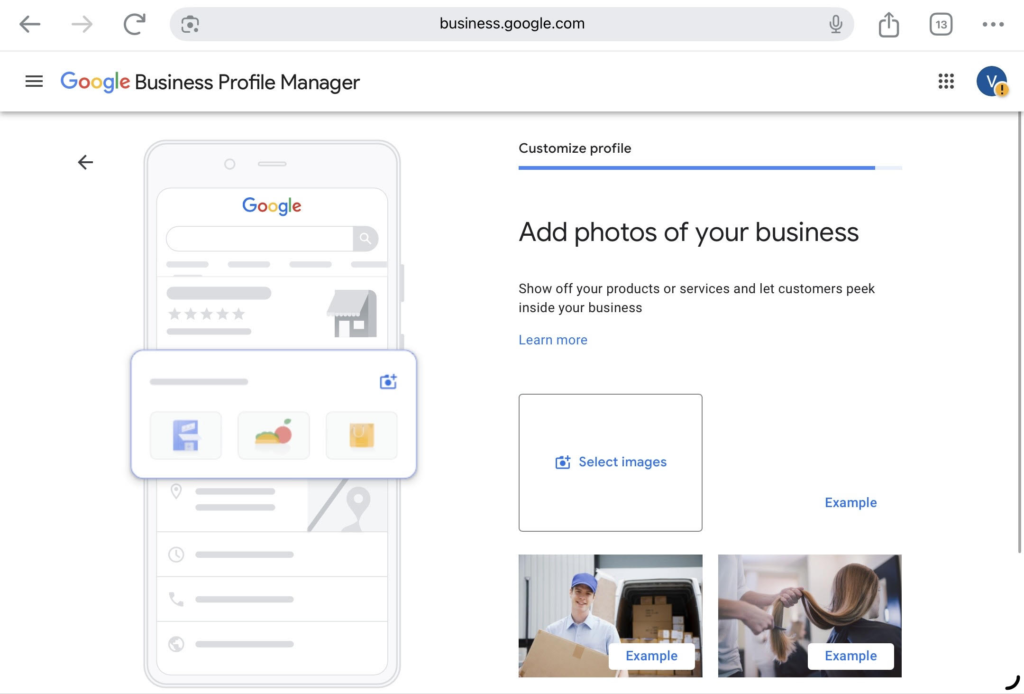
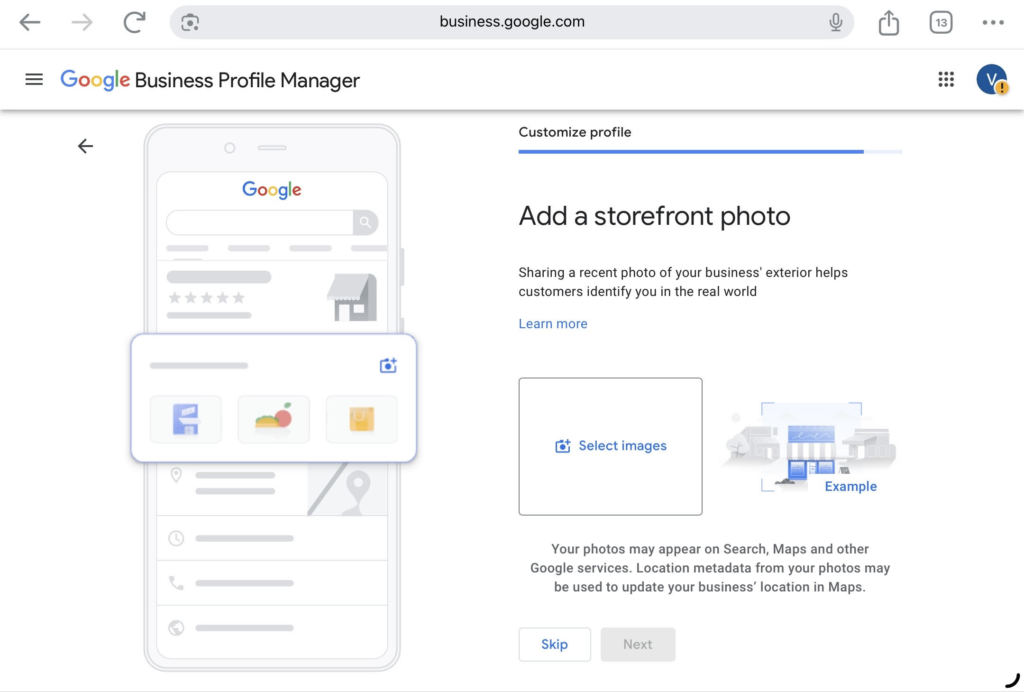
- Add high-quality photos — Exterior, interior, products/services, team (photos boost engagement).
- Complete all sections — Services, products, attributes (e.g., “wheelchair accessible”), business description.
- Post updates — Share offers, events, or news regularly.
- Encourage reviews — Ask satisfied customers to leave reviews.
- Monitor insights — See how customers find and interact with your profile.
- Respond to reviews and Q&A — Builds credibility.
You can manage everything from the dashboard at business.google.com or directly in Google Search/Maps (search your business while signed in).
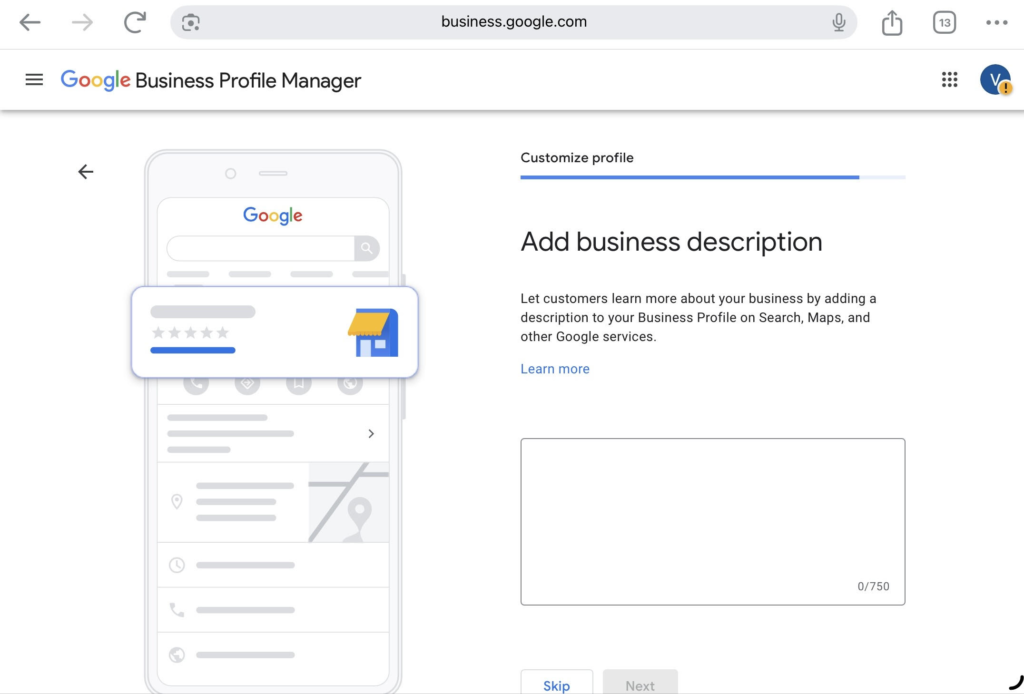
Step 7: Describe Your Business
Here you can describe your business, your services, open hours, etc. You have just 750 characters so be economical. Say the most important things and avoid going into elaborate details.
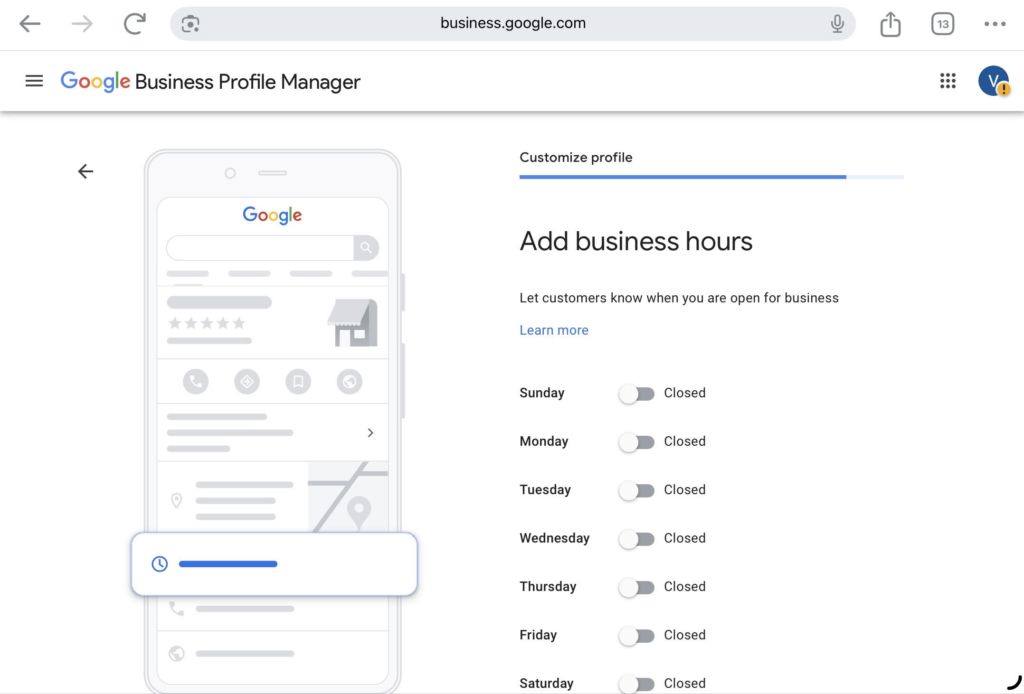
Step 7: Add Your Business Hours.
Add the hours for each day of the week when your business is open or closed. Regularly update hours to reflect holidays or special closures, which helps improve trust and local search visibility.
Use “More Hours”: If you have specific times for services like happy hour, delivery, or senior hours, you can add these in addition to your regular operating hours.
Special Hours: Use this feature for one-time closures or holiday hours rather than changing your regular, daily schedule.
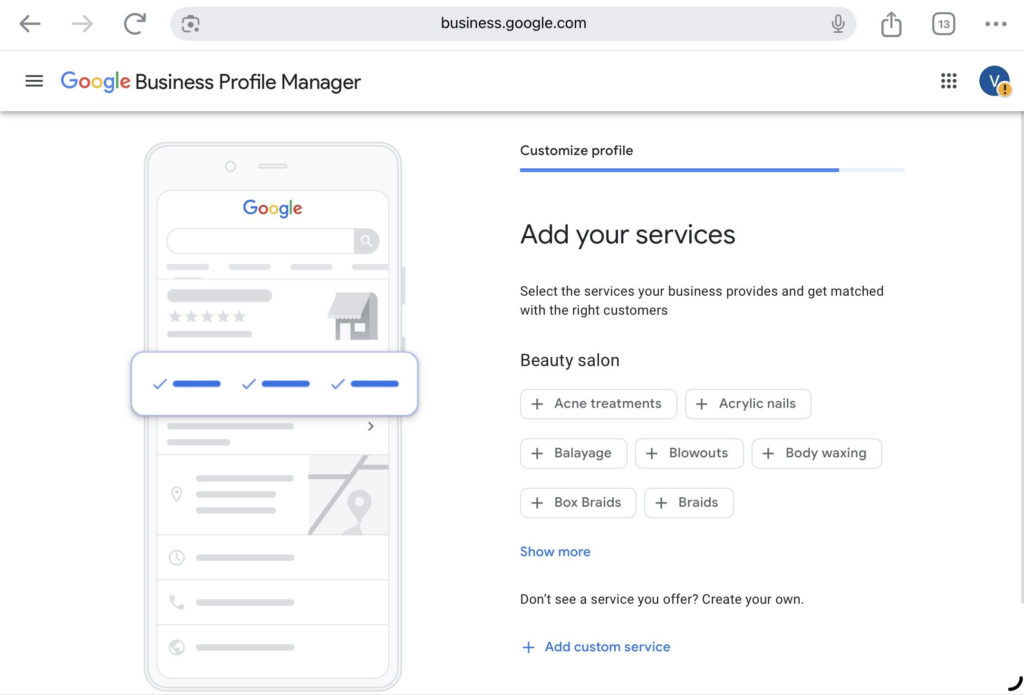
Step 7: Add Your Services
Here you add the services your business provides. You can use Google’s suggestions or you add your own.
After Verification, Don’t Abandon Your Profile
You can use your Google Business Profile to publish posts to your Business Profile, much like you would with Facebook and other social media platforms. You can share updates, promotions, events, and new products.
Most businesses set up their profile and then forget about it. That is a mistake. Posting consistently, ideally once a week, signals to Google that your business is active, which can improve how high you appear in search results.
Google now allows up to ten images per post and also supports post scheduling directly within the platform, so you no longer need expensive third-party apps to plan your content ahead of time.
Ask Customers for Reviews And Respond
Reviews are crucial. Getting Google reviews for your Business Profile builds trust with potential customers, improves rankings in local search, and provides feedback you can use to improve services.
Don’t be shy about asking satisfied customers to drop a review. Send them your review link on WhatsApp, print it on your receipts, or display it on a notice at your shop entrance. Make it easy for them.
Responding to Google reviews shows customers that you value their experience, whether the feedback is positive or negative. Always reply to every review, even the bad ones, especially the bad ones. A calm, professional response to a negative review often impresses new customers more than the complaint worries them.
Track Your SEO Performance with Insights
Google Business provides analytics that show you how many people found your profile, what search terms they used, whether they came from Google Search or Google Maps, and what actions they took — like calling you, visiting your website, or asking for directions.
Use this information to understand your customers better. If you notice people are finding you through a particular keyword, include it more in your posts and description going forward.